
New Anyvite Potluck Feature for the Holidays!

Thanksgiving Table

With the holidays rapidly approaching, the number of potluck type of events organized with Anyvite will increase dramatically.  While it is possible to manage these type of events using the description field and comment board, it’s much much easier to have built in functionality to handle the “who’s bringing what” question.  In response to this, we’ve developed a “Potluck” feature on Anyvite for hosts to specify and manage the items which they would like guests to bring to an event.

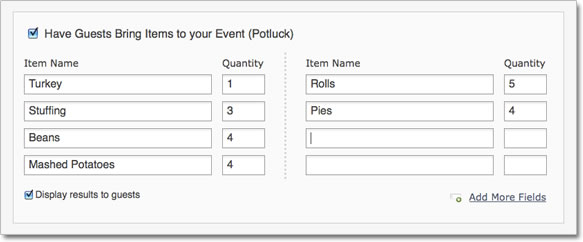
Next time you’re creating an invitation where you need guests to bring different items, simply enable the Potluck feature on the “Edit Details Page” by clicking the checkbox next to “Have Guests Bring Items to your Event (Potluck)”.  Then, fill in the items that you would like guests to bring and how many of each you need.  Finally, decide if you’d like your guests to be able to see who is bringing each item, or if you’d just like to restrict that view only to the host of the event.

Add Potluck Functionality

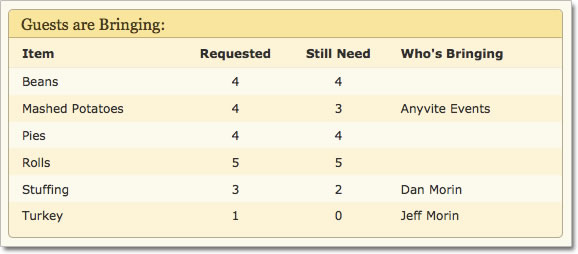
Once you save and send that invitation, anyone who RSVPs will have the option to select an item to bring to the event.  The summary table will display all of the items available to bring, how many are needed, how many are still remaining, and who is bringing each item.  If you would like to print this information out, simply export the guest list and the potluck information will be included with the guest’s name and RSVP type.  Hosts are able to change or remove the item that guests are bringing by using the “Change RSVP” link under the name of the guest (or if profile pictures are disabled, clicking the guest’s name).

View Potluck Functionality

For now, we’re restricting who can select an item to only guests who RSVP “Yes” to an event, for the obvious reason that you don’t want a guest who RSVPs “Maybe” to be responsible for a crucial item and then not show up.  If you feel differently about this, please contact us and let us know what your ideal solution would be.

Keep an eye out for many more exciting additions and updates to Anyvite!  Also, please remember to switch over your Groups to Contact Lists before the end of the month!

Bookmark and Share

Manage Guests and the End of Groups

Many of you have been asking for a better way to manage an invitation’s guest list, and rightfully so.  The old “Invite Guests” page tried to be both the place to invite new guests as well as manage the existing guest list.  In theory, it was a nice idea but it never worked very well since an invitation’s guest list and the host’s address book don’t always completely overlap.

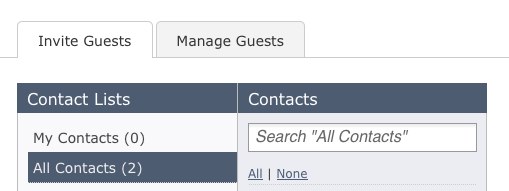
Today we launched a new version of the site which includes an updated “Invite Guests” page and a brand new “Manage Guests” page as well.  You can access both by going to the “Invite Guests” page as you always have and then look for the tabs on the top to switch over to the “Manage Guests” page.

Manage Guests Tabs

The new “Invite Guests” page was redesigned to have the same look and feel as the address book, and now supports your Anyvite address book contact lists so you can finally invite guests that way!

The “Manage Guests” page is brand new and adds two highly requested features to Anyvite: removing any guest from the invitation regardless of if they have viewed it or not, and the ability to resend the invitation to selected guests.

As we add features and functionality to Anyvite, we also like to review the current state of the service and see what we can do to make it simpler.  The original idea behind the Anyvite groups functionality was a grand one involving shared contact lists, but ended up not being developed to its full potential for a multitude of reasons.  Ultimately, groups worked okay for some users, but weren’t a great solution for anyone.  For this reason, we’ve decided to phase out groups and replace them with the newly completed contact lists.

To make the transition easy, we’ve already converted each group to a contact list for each group admin.  You should see them listed under contact lists in your address book.  If any group members want to create a contact list based on a group, there is a link on the main group page that will convert it for you.  We’re planning to leave this in place until November 1st at which point we’ll fully remove the rest of the groups functionality.  Please note that once converted, the resulting contact list isn’t shared between users anymore, so a change to one won’t affect any other contact list.

We’re excited about the new guest list management features and hope it makes your Anyvite experience that much better!  If you have any questions, feel free to contact us. And remember, Halloween is on a Saturday this year, so start making plans with our free Halloween Invitations.

Bookmark and Share

Anyvite Premium Invitation Sites

Over the past few months, we’ve been working on some exciting new projects, one of which we launched last month. Today, we’re happy to announce the release of another of those projects: Anyvite Premium Invitation Sites.

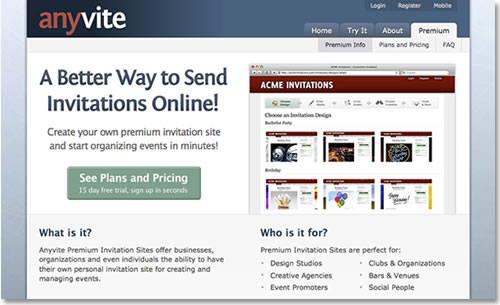
Anyvite Premium Invitation Sites

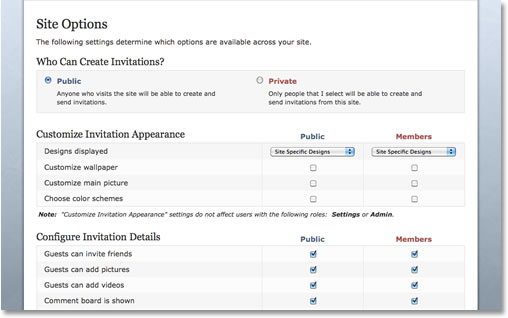
Anyvite Premium Invitation Sites allow businesses, organizations, clubs and even individuals to have their own fully customized site dedicated to organizing events under their own brand. Sites are able to be configured as either public (anyone can create a branded invitation) or private (you designate who can organize events), and consist of a whole array of options which can be toggled or disabled at will.

Premium Invitation Site Options

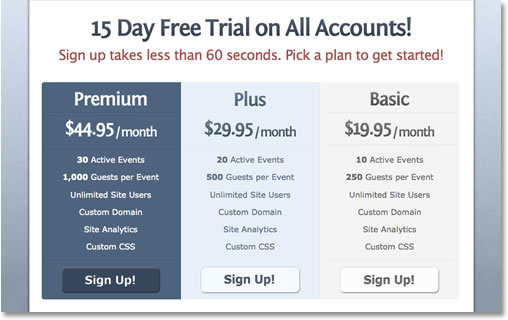
Getting started is as easy as selecting a plan, choosing a site name, and adding in your billing info. Every plan comes with a 15 day free trial, so if you’re not satisfied with the experience, simply cancel your plan before the 15 days are up and you won’t be charged a thing. As an added incentive, we’re providing our basic site design customization service for free to any new customers. Simply sign up for a site, and then send us an email with your new site’s URL, as well as information about how you would like to customize your site.

Premium Site Plans and Pricing

Premium Sites are perfectly suited for existing businesses which conduct a large number of events on a regular basis and are looking to add another offering to their existing services, or for groups and organizations looking to further their brand by utilizing events as means to connect with existing or future customers.

If you have any questions about Anyvite Premium Invitation Sites or if our current packages don’t fit your needs, please contact us and we’ll get things sorted out for you.

Bookmark and Share

New Daily Invitation Activity Emails

We’ve just pushed out new functionality today for updating guests on activity to invitations which they’ve RSVPed “Yes” or “Maybe” to.  In the past, new comments and RSVPs have slipped under the radar for most guests because notifications were not in place to alert them to new activity.  Now, if there is any activity on one of your invitations, you’ll receive a daily email to notify you of new changes, and allow you to view RSVPs and respond to comments on the invitation itself.

Picture 83

Additionally, if someone responds to a comment that you’ve made on the message board, you’ll receive an email right away telling you that, and allowing you to respond back to them in almost real time.  We hope that this facilitates better and more lively discussions on the message board!

As always, we’d love to hear your thoughts on this new update to Anyvite, as well as anything else which may be on your mind!

Bookmark and Share

Anyvite is 1 Today

Anyvite CupcakeToday marks the one year anniversary of when we launched Anyvite on Techcrunch.  The service has changed significantly in that time period, and will continue to do so in the coming months and years, thanks to feedback from you, the users.

We want to thank all of those people who’ve used Anyvite since the beginning and spread the word about the service, anyone who’s taken the time to write us about problems or features that they’d like to see, and those special people who’ve kept us motivated to keep working on things one day at a time.

We look forward to working with each of you in the future as we continue to improve Anyvite. Thanks again and keep in touch!

~ The Anyvite Team

Bookmark and Share

10 Tips for Getting the Most out of Your Anyvite Online Invitation

Thousands of people use online invitations every day to invite guests to events.  While the base functionality is pretty straightforward, most people fail to take advantage of the nuances that really make online invitations worth using.  Here are 10 tips on how to get the most out of your Anyvite online invitations:

1.  Personalize It – While many of the pre-made themes are excellent to use, personalizing an invitation with a funny or embarrassing picture of the birthday boy/girl really helps guests connect with what’s happening and make it more likely they’ll RSVP yes.  Additionally, you can add in supporting pictures and video relating to the theme or person that the event is centered around, or showcase pictures from the previous year’s event.

2.  Mobile Is Better – Instead of relying solely on the computer for managing your invitation and event, leverage the mobile capabilities of Anyvite to create invitations and advise your guests on the go!  Anyvite has a mobile version of the main site which you can access through your phone and text message commands which you can use to send update messages to all of your guests, even if you don’t have the Internet on your phone.

3.  Cap the Number of Guests – Scarcity facilitates action.  Instituting a cap on the number of guests who can attend an event creates the initial panic that you might be left out, resulting in more guests RSVPing faster than if the invitation is left open to unlimited number of people.  You can always raise the cap if you hit it prematurely and need to allow more guests in.

4.  Time When You Send Out the Invitation – It’s a fact of life that people get a lot of email, so if you happen to send out an invitation on Friday night at 8pm, then odds are it won’t be read by a majority of your guests until the following Monday at work…if it hasn’t been buried under every other email sent over the weekend.  Plan on sending out your invitation when people are at their desks and actively reading email.  This means sending on a weekday morning when people are just getting into the office or after lunch when they’re taking a break before afternoon meetings.  You’ll end up with a higher number of RSVPs and faster response time than sending during off hours or on a weekend.

5.  Toggle Guest RSVPs to “Yes” – Guests love to see who else is attending and will be more likely to RSVP “Yes” if other people have already.  If you’ve discussed the event and received verbal responses from some guests, then use the “Change RSVP” functionality to update their RSVPs to “Yes” before sending out the invitation.

6.  Start a Discussion on the Comment Board – Immediately after sending out your invitation, you should leave a message on the comment board in order to get a discussion going.  Unlike comments on blogs, guests usually don’t want to be the first one to leave a comment on an invitation, so having the event creator kick things off is the best way to boost activity on your invitation, and ultimately increase RSVPs from invited guests.

7.  Update Your Guests To Keep Them Engaged – Day to day life can be extremely busy and we sometimes forget even the most important events.  You should send notes from time to time to guests to keep them updated on the progress of the event and/or ask questions if the need arises.  This keeps the guests who have already RSVPed engaged and thinking about the event, and it prompts guests who have not yet responded to revisit the invitation and update their RSVP accordingly.

8.  Promote, Promote, Promote! - If you’re throwing a large party or event where the goal is to get as many people as possible to attend, then you’re going to need to do a little (or a lot) of promotion.  Even the largest guest list can be improved by using the network effect, and one of the best ways to do this to post it to the most popular and highly visible social networks out there, mainly Facebook and Twitter, using the sharing buttons on your invitation.  This will result in your event being visible to that guest’s network of friends, who can Sign Up and RSVP, repost it themselves, and the effect continues.

9.  Guests are Always Fashionably Late -  Almost without fail, people will be late on purpose.  Guests never want to be the first ones to arrive, so take this into account when determining a start time for your event.  If you want people to arrive for an 8:30pm party, then have the start time be 8pm to compensate accordingly.  Additionally, having a small group of friends show up a little beforehand so that there is a small crowd already when the first guests arrive helps to get the party started.

10.  Send a Thank You Note Afterwards -  You can send a Thank You note on Anyvite to guests who attended by clicking “Contact Guests” on your invitation and entering a message to say thanks for attending, and that you’re looking forward to seeing them again at your next event.  A little gratitude can go a long way!

Obviously, these tips do not apply to all situations, but hopefully at least one will help you the next time you’re looking to throw an event using Anyvite.  Please leave any great tips that you have in the comments!

Bookmark and Share

A new dashboard, Hosted By field, and much more!

We’ve released another significant update to the site which should fix a lot of the quirks and bugs that you may have been experiencing recently.  In addition, we’ve made some strides in updating the dashboard to be a bit cleaner and less cluttered, as well as added in the ability to enter in a “hosted by” name, rather than just using the name of your Anyvite account.  Check it out and let us know your thoughts!

 Picture 44

We hope everyone had a great Memorial Day Weekend and are looking forward to a summer filled with BBQs, picnics, parties and fun!

Bookmark and Share

Happy Mother’s Day!

“Mothers hold their children’s hands for a short while, but their hearts forever.”

From everyone here at Anyvite, we just wanted to say “Happy Mother’s Day” to all of the mothers out there, and hope you are having a great and wonderful day!

974546_54946261

Bookmark and Share

A New Progress Bar when Creating Invitations

We’ve just added a new feature to the site which lets you track where you are in the process of creating an invitation.  We had received some feedback from users who thought that some parts of the process were a bit ambiguous, so this should hopefully help to alleviate that.  

Picture 31

It works basically as expected.  You can always go backwards to steps that you’ve already completed or skipped, but have to perform the necessary actions to move forward in the process.   We’d love to hear your thoughts on whether you think it makes creating an invitation easier or harder, so please let us know!

Bookmark and Share

Using Anyvite with your Phone (and we don’t mean iPhone)

Flip PhoneUsing Anyvite with your phone is a topic which we thought most people were familiar with, but based upon recent conversations, it appears to be an aspect of Anyvite which is still relatively unknown.  Our intent with the service has always been to make it as easy and accessible as possible, which means gearing the functionality that we build towards the largest and most available audience.  We did this by building out mobile functionality using text messaging as the communication channel, so that everyone would be able to take advantage of it.

For event organizers specifically, managing invited guests on the go has always been a hassle.  There are a million and one things that could go wrong, resulting in the need to change a necessary element of the event, which a lot of times requires updating guests at the last minute.  We built in the functionality to allow the event organizer to do just that using only a single text message from their phone, so that they never had to worry about being by a computer to notify their guests of changes.

To get started using Anyvite with your phone, simply log in and navigate to the “Contact Info” section under the “Settings” tab, and add in your phone number along with your service provider (AT&T, Verizon, etc.).  Then, go to the Notifications page and customize the types of notifications that you would like to receive on your phone.  Every time you, or one of your friends, creates an invitation for an event, you’ll receive a text message with the relevant details.

Now here comes the really slick part of the service, the communication is not just a one way street so you can respond back to the text message you received with different commands for Anyvite.  If you’re an event organizer, and want to notify your guests of something from your phone (as discussed above), simply reply to the text message you received with the following command:

To send a message to all invited guests (no quotes):
msg "enter your message here without the quotes"

If you want to RSVP or comment on an invitation that you received, simply send one of these commands:

To RSVP yes:
rsvp y

To RSVP no:
rsvp n

To add a comment to the invitation (no quotes):
comment "enter your comment here without quotes"

If you forget any of these options, simply reply back to an Anyvite text message with the word “help” and we’ll send you a text message with a list of options.  It’s as simple as that!

Oh, and if you do happen to have an iPhone or web enabled phone, you can always use the Anyvite mobile site to manage your invitations too.  Try it out and let us know what you think.

Bookmark and Share

Next Page »

Older Posts »